Debugging cron jobs
The cron scheduler that runs your jobs is battle-tested and reliable, but it can be challenging to get new jobs running, and inscrutable when old jobs start failing. This guide will show you how to identify a failing cron job, validate its schedule, and debug common problems.
How to debug your cron jobs
At Cronitor we've been collecting and analyzing data about cron job failures since 2014. Some jobs do fail in their own unique way, but we've observed common patterns that will help you debug and fix your cron jobs most of the time.
The rest of this guide is divided into two sections that focus on debugging new cron jobs and fixing old jobs that start to fail, covering common causes and their suggested solutions.
If you're adding a new cron job and it is not working, this guide covers:
Verify your cron schedule
Cron job schedule expressions are quirky and difficult to write. If your job didn't run when you expected it to, the easiest thing to rule out is a mistake with the cron expression.
Understand cron environment differences
A common experience is to have a job that works flawlessly when run at the command line but fails whenever it's run by cron. When this happens, check for these common issues:
- The command uses a relative path like
../scripts. Cron's working directory is the account's home, not the directory you were in when you edited the crontab. Use an absolute path, or see the crontab working directory. - The job uses environment variables. Cron does not load
.bashrcand similar files. See crontab environment variables. - The command uses advanced bash features. Cron uses
shby default.
Tip:
cronitor shellruns one command from your home directory with a stripped environment. It is not cron'ssh. The/bin/sh -ccheck is in how to run a cron job manually.- The command uses a relative path like
Check for problems with permissions
Invalid permissions can cause your cron jobs to fail in at least 3 ways. This guide will cover them all.
If an old cron job has stopped working, this guide explores:
Check your cron status
Figure out how to check if your cron job is running at all, and diagnose common errors using the cron log.
Something is consuming all system resources
Over a long enough time there is a lot that can go wrong on a server and the most stable cron job is no match for a disk that is full or an OS that can't spawn new threads. Check all the usual graphs to rule this out.
You've reached an inflection point
Cron jobs are often used for batch processing and other data-intensive tasks that can reveal the constraints of your stack. Jobs often work fine until your data size grows to a point where queries start timing-out or file transfers are too slow.
Infrastructure drift occurs
When app configuration and code changes are deployed it can be easy to overlook the cron jobs on each server. This causes infrastructure drift where hosts are retired or credentials change that break the forgotten cron jobs.
Jobs have begun to overlap themselves
Cron is a very simple scheduler that starts a job at the scheduled time, even if the previous invocation is still running. A small slow-down can lead to a pile-up of overlapped jobs sucking up available resources. See how to prevent duplicate cron jobs.
You've added a new bug in your code, or triggered an old one
Sometimes a failure has nothing to do with cron. It can be difficult to thoroughly test cron jobs in a development environment and a bug might exist only in production.
Want alerts if your cron jobs stop working?
Monitor your cron jobs with Cronitor to easily collect output, capture errors and alert you when something goes wrong. Schedules, grace periods, and tolerances are documented in job monitoring.
How to fix a cron job that is not running when expected
When you suspect that a cron job is not running when you expect, you may find you have very little hard evidence in the form of log entries or stack traces to guide your debugging. This section will cover the steps to methodically locate your job and diagnose the problem.
1. Locate the scheduled job
Cron jobs are run by a system daemon called crond that watches several locations where crontab files can contain scheduled jobs. The first step to understanding why your job didn't start when expected is to find where your job is scheduled. Tip: If you know where your job is scheduled, skip this step
Search manually for cron jobs on your server
- Check your user crontab with
crontab -ldev01: ~ $ crontab -l # Edit this file to introduce tasks to be run by cron. # m h dom mon dow command 5 4 * * * /var/cronitor/bin/database-backup.sh - Jobs are commonly created by adding a crontab file in
/etc/cron.d/ - System-level cron jobs can also be added as a line in
/etc/crontab - Sometimes for easy scheduling, jobs are added to
/etc/cron.hourly/,/etc/cron.daily/,/etc/cron.weekly/or/etc/cron.monthly/ - It's possible that the job was created in the crontab of another user. Go through each user's crontab using
crontab -u username -l - For a complete walkthrough of these options, see our guide covering where cron jobs are saved
Or, scan for cron jobs automatically with CronitorCLI
Install CronitorCLI. The install script selects the binary for this machine and does not need an API key, so you can sign in later when you want monitoring. Windows and a manual install are on that same page.
curl -fsSL 'https://cronitor.io/install-linux?sudo=1' | sh
cronitor help
Run
cronitor listto show jobs in the current user's crontab and the system crontab files (/etc/crontaband/etc/cron.d):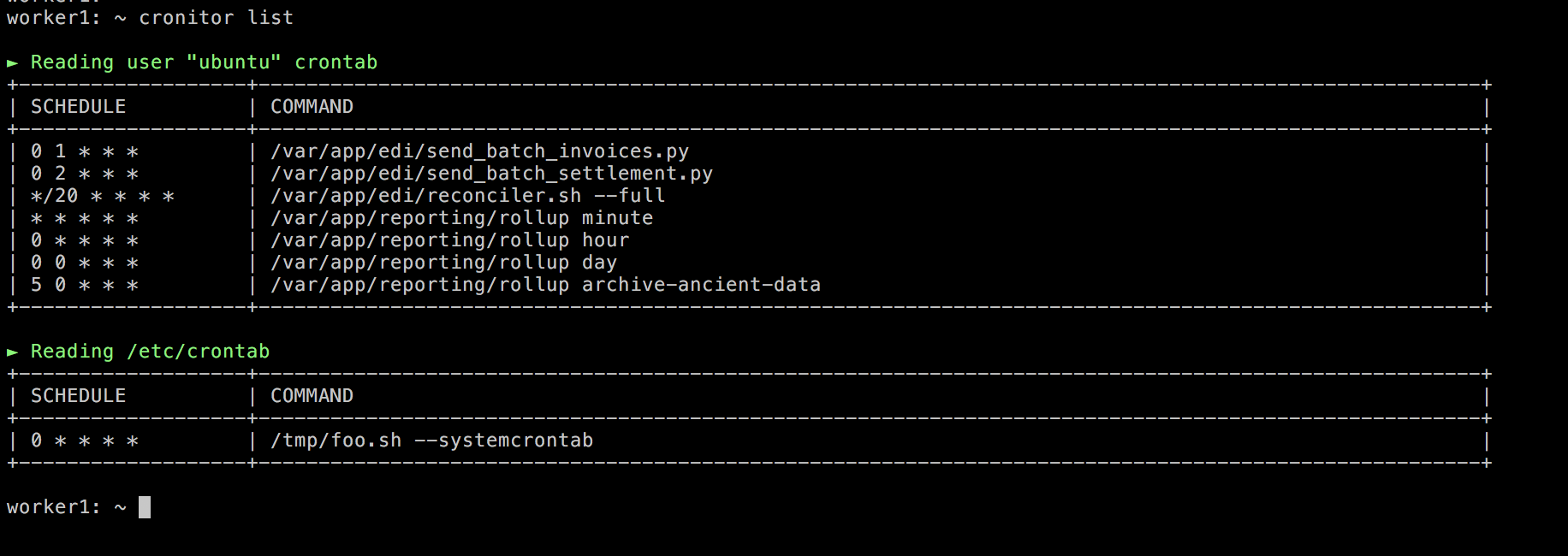
Other accounts are excluded unless you pass
--users.cronitor list /path/to/crontabreads one file or a directory of crontabs instead.
If you can't find your job but believe it was previously scheduled, double check that you are on the correct server.
If you know you are, then try to rule out if the job was once scheduled but accidentally deleted. In many systems, crontab files are controlled by a central configuration service like Ansible, and this might overwrite crontab files that have been directly edited. Another common mistake when working with crontab files is to mistype crontab -r when you meant to type crontab -e. This one character difference, one key apart on most keyboards, will delete the crontab without requiring a confirmation prompt.
2. Validate your job schedule
Once you have found your job, verify that it's scheduled correctly. Cron schedules are used widely because they are expressive and powerful, but like regular expressions they are difficult to read. We suggest using Crontab Guru to validate your schedule.
- Paste the schedule expression from your crontab into the text field on Crontab Guru
- Verify that the plaintext translation of your schedule is correct, and that the next scheduled execution times match your expectations
- Check the server clock with
date. cronie (the default on Red Hat and Fedora) readsCRON_TZin the crontab and uses that zone for the schedule. Debian and Ubuntu cron schedule from the system clock and ignoreCRON_TZ. ATZ=line is passed into the job. It changes whatdateprints inside the script, and it leaves the schedule on the system clock. See crontab environment variables.
3. Check your permissions
Invalid permissions can cause your cron jobs to fail in at least 3 ways:
- Files in
/etc/cron.d/have to be owned by root. Cron skips any other owner and logsWRONG FILE OWNER. Scripts dropped in/etc/cron.hourly/and the othercron.*directories have no username field, and they still run as root. On Debian and Ubuntu,/etc/crontabstarts them withrun-parts, which skips a script that is not executable or whose name contains a dot. On Red Hat, hourly scripts are started from/etc/cron.d/0hourly, and daily, weekly, and monthly go through anacron. See where cron jobs are saved. - The command must be executable by the user that cron is running your job as. For example if your
ubuntuuser crontab invokes a script likedatabase-backup.sh,ubuntumust have permission to execute the script. The most direct way is to ensure that theubuntuuser owns the file and then ensure execute permissions are available usingchmod +x database-backup.sh. - The user account must be allowed to use cron. First, if a
/etc/cron.allowfile exists, the user must be listed. Separately, the user cannot be in a/etc/cron.denylist.
If the command contains %, escape it with a backslash. Cron turns an unescaped % into a newline and passes the rest of the line to the command as stdin.
4. Check that your cron job is running by finding the attempted execution in your logs
When a command is run on schedule, cron will write the activity to a log file. By grepping the log for the name of the command you found in a crontab file you can validate your job and see that it's scheduled correctly and cron is running. If you're unfamiliar with some of these concepts, head over to our guide on checking if a cron job is running for more detailed step-by-step instructions.
- Begin by grepping for the command (on this
ubuntuserver, in/var/log/syslog). You will probably need root or sudo access, and be aware of log rotation. On Red Hat the file is/var/log/cron.dev01: ~ $ grep database-backup.sh /var/log/syslog Aug 5 4:05:01 dev01 CRON[2128]: (ubuntu) CMD (/var/cronitor/bin/database-backup.sh) - If you can't find your command in the syslog it could be that the log has been rotated or cleared since your job ran. If possible, rule that out by updating the job to run every minute by changing its schedule to
* * * * *. - If your command doesn't appear as an entry in syslog within 2 minutes the problem could be with the underlying cron daemon. The process name is
cronon Debian and Ubuntu andcrondon Red Hat. Match that name exactly, orpgrepwill also hit commands whose names merely contain "cron", such ascronitor dashoranacron. If neither daemon is running,pgrepprints nothing.dev01: ~ $ pgrep -x cron || pgrep -x crond 323 - If you've located your job in a crontab file but persistently cannot find it referenced in syslog, double check that
crondhas correctly loaded your crontab file. The easiest way to do this is to force a reparse of your crontab by runningEDITOR=true crontab -efrom your command prompt. If everything is up to date you will see a message likeNo modification made. Any other message indicates that your crontab file was not reloaded after a previous update but has now been updated. This will also ensure that your crontab file is free of syntax errors.
If you can see in syslog that your job was scheduled and attempted to run correctly but still did not produce the expected result you can assume there is a problem with the command you are trying to run.
How to debug unexpected cron job failures
If you've discovered that a cron job is failing that was previously running normally, the right question to ask is "what has changed". This section shows techniques for identifying common problems and re-creating the failure.
1. Test run your command like cron does
When cron runs your command the environment is different from your normal command prompt in subtle but important ways. The first step to troubleshooting is to simulate the cron environment and run your command in an interactive shell.
Try a command with CronitorCLI
Install CronitorCLI as in the previous section if it is not already on the host.
cronitor listprints the jobs it finds. It does not run them. To start one from a browser on that machine, runcronitor dashand use its one-click "run now". The dashboard listens on port 9000 unless you pass--port.To try a command with almost none of your interactive environment, use
cronitor shell. It runs one command, starting in your home directory, and the variables it sets areSHELL=/bin/sh,HOME, andCRONITOR_EXEC=1. It does not setPATH. When/bin/bashis installed the command runs asbash -c, so this will not catch bash-only syntax that cron'sshrejects. For that syntax check, usesudo -u <user> /bin/sh -c 'cd ~ && <command>'as in how to run a cron job manually. Bash then falls back to its built-in default PATH, which differs from cron's. It always includes/usr/local/bin, and on Debian the current directory. Cron's PATH is short, typically/usr/bin:/bin, and a bit longer on cronie 1.7 and later, so a "command not found" caused by cron's PATH may not reproduce here. Use an absolute path, or setPATHat the top of the crontab.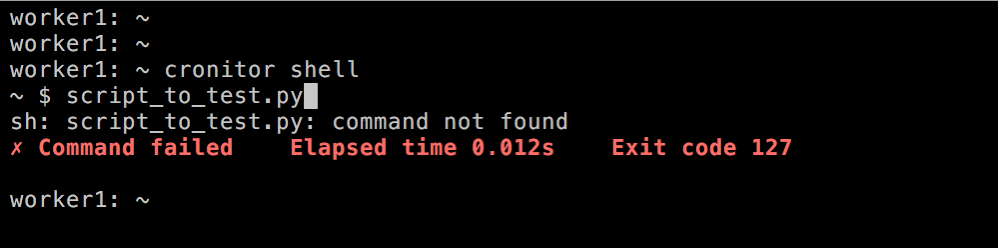
Or, manually test run a command like cron does
- If you are parsing a file in
/etc/cron.d/or/etc/crontabeach line has a username after the schedule and before the command. The username is required. It does not default to root. If this applies to your job, or if your job is in another user's crontab, begin by opening a bash prompt as that usersudo -u username bash - By default, cron will run your command using
sh, not the bash or zsh prompt you are familiar with. Double check your crontab file for an optionalSHELL=/bin/bashdeclaration. If using the defaultshshell, certain features that work in bash like[[command]]syntax will cause syntax errors under cron. On Debian and Ubuntu thatshis dash. See crontab environment variables. - Unlike your interactive shell, cron doesn't load your
bashrcorbash_profileso any environment variables defined there are missing in your cron jobs. This is true even if you have aSHELL=/bin/bashdeclaration. To simulate this, create a command prompt with a clean environment.dev01: ~ $ env -i /bin/sh - By default, cron will run commands with your home directory as the current working directory. To ensure you are running the command like cron does, run
cd ~at your prompt. For a step-by-step guide to determine the right directory to use, see our guide on understanding the crontab working directory. - Paste the command to run (everything after the schedule or declared username) into the command prompt. If crontab is unable to run your command, this should fail too and will hopefully contain a useful error message. Common errors include invalid permissions, command not found, and command line syntax errors.
- For a step-by-step walkthrough, see our guide on how to run a command like cron does
If you can reproduce the failure, you might be given clues in the form of error messages or exit codes that can help you diagnose the problem. If no useful error message is given, double check any application logs your job is expected to produce, and ensure that you are not redirecting log and error messages. In linux, command >> /path/to/file will redirect console log messages to the specified file and command >> /path/to/file 2>&1 will redirect both the console log and error messages. Determine if your command has a verbose output or debug log flag that can be added to see additional details at runtime. Ideally, if your job is failing under cron it will fail here too, and you will see a useful error message that explains the failure. Common errors include file not found, misconfigured permissions, and command line syntax errors.
2. Check for overlapping jobs
At Cronitor our data shows that runtime durations increase over time for a large percentage of cron jobs. As your dataset or userbase grows it's normal to find yourself in a situation where cron starts an instance of your job before the previous one has finished. Depending on the nature of your job this might not be a problem, but several undesired side effects are possible:
Unexpected server or database load could impact other users
Locking of shared resources could cause deadlocks and prevent your jobs from ever completing successfully
Creation of an unanticipated race condition that might result in records being processed multiple times, amplifying server load and possibly impacting customers
To verify if any instances of a job are running on your server presently, grep your process list. In this example, 3 job invocations are running simultaneously:
dev01: ~ $ ps aux | grep database-backup.sh | grep -wv grep
ubuntu           1343   0.0  0.1  2585948  12004   ??  S    31Jul18   1:04.15 /var/cronitor/bin/database-backup.sh
ubuntu           3659   0.0  0.1  2544664    952   ??  S     1Aug18   0:34.35 /var/cronitor/bin/database-backup.sh
ubuntu           7309   0.0  0.1  2544664   8012   ??  S     2Aug18   0:18.01 /var/cronitor/bin/database-backup.sh
To quickly recover from this, first kill the overlapping jobs and then watch closely when your command is next scheduled to run. It's possible that a one time failure cascaded into several overlapping instances. If it becomes clear that the job often takes longer than the interval between job invocations you may need to take additional steps, e.g.:
- Increase the duration between invocations of your job. For example if your job runs every minute now, consider running it every other minute.
- Use
flockso only one instance runs.-nmeans do not wait. The next argument is the lock file, then the command.flockis in util-linux on most Linux systems.dev01: ~ $ crontab -l # Edit this file to introduce tasks to be run by cron. # m h dom mon dow command * * * * * flock -n /home/ubuntu/database-backup.lock /var/cronitor/bin/database-backup.sh
flock holds the lock until that command exits, and it leaves the lock file on disk. Put the lock file somewhere the job's user can create. /var/lock is writable by a normal user on Ubuntu, but on Red Hat that directory is root-only, so a user crontab cannot create a lock there. The pattern, including what a skipped run looks like to Cronitor, is in how to prevent duplicate cron jobs. The flock man page is the reference for the flags.
What to do if nothing else works
Here are a few things you can try if you've followed this guide and find that your job works flawlessly when run from the cron-like command prompt but fails to complete successfully under crontab.
First get the most basic cron job working with a command like
date >> /tmp/cronlog. This command will simply echo the execution time to the log file each time it runs. Schedule this to run every minute and tail the logfile for results.If your basic command works, replace it with your command. As a sanity check, verify if it works.
If your command works by invoking a runtime like
python some-command.pyperform a few checks to determine that the runtime version and environment is correct. Each language runtime has quirks that can cause unexpected behavior under crontab.- For
pythonyou might find that your web app is using a virtual environment you need to invoke in your crontab. See Python cron jobs. - For
nodea common problem is falling back to a much older version bundled with the distribution. See Node cron jobs. - When using
phpyou might run into the issue that custom settings or extensions that work in your web app are not working under cron or commandline because a differentphp.iniis loaded. See PHP cron jobs.
If you are using a runtime to invoke your command double check that it's pointing to the expected version from within the cron environment.
- For
If nothing else works, restart the cron daemon and hope it helps, stranger things have happened. On Debian and Ubuntu:
sudo systemctl restart cronOn Red Hat and Fedora:
sudo systemctl restart crond