Platform
Alerts & Issues
Cronitor's alert system ensures you're promptly notified when issues occur with your monitors. Alerts are what users sign up for - to be notified when their cron jobs, websites, services, or APIs fail.
When a monitor detects an issue, Cronitor automatically opens an Issue and sends Alerts to the recipients specified in your Notification Lists. Here's how these components work together. Coding agents can manage notification lists and investigate issues through the Cronitor MCP server; the agent quick start has the recipes.
Alerts
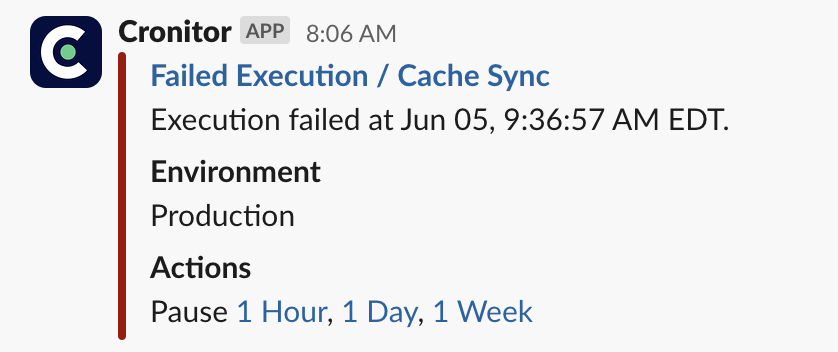
Alerts are the notifications Cronitor sends when a monitor fails or an assertion is violated. Recovery alerts are also sent when a monitor returns to a "healthy" state. All alerts contain:
- Issue context - Direct link to the open issue with full details
- Monitor information - Which specific monitor failed and error details
- Failure description - What went wrong and when it happened
- Recovery status - Whether the issue is ongoing or resolved
- Action links - Quick access to pause alerts, view history, or manage the monitor
Issues
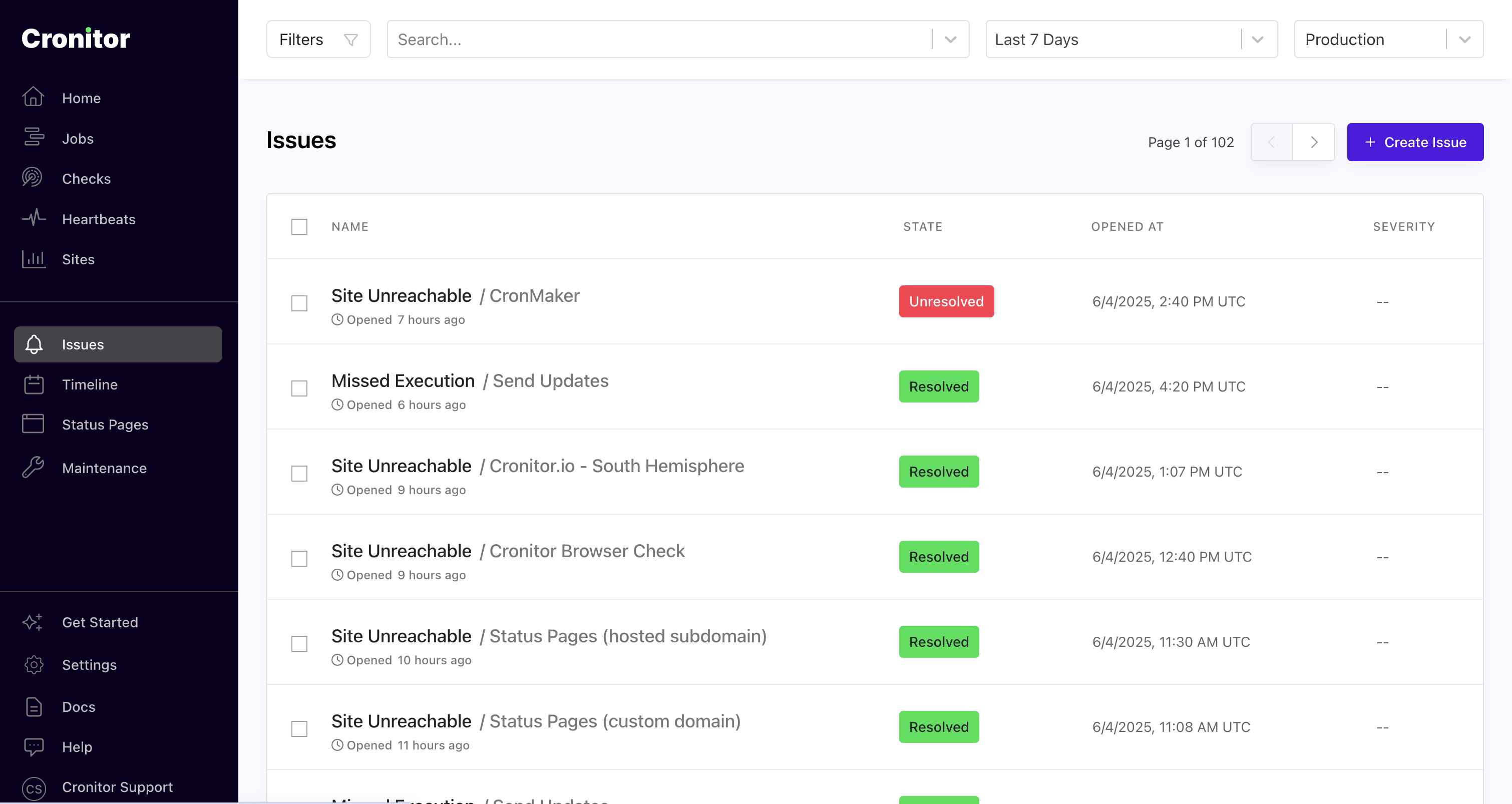
Issues are Cronitor's incident management hub - they help your team coordinate response when monitors fail - issues automatically open when monitors fail and close when they recover, creating a complete incident timeline your team can reference and learn from. Each issue provides:
- Team coordination - See who's been notified and track investigation progress
- Alert visibility - View which team members received notifications and when
- Shared context - Centralized place for error details, monitor history, and resolution notes
- Status page publishing - One-click sharing to keep customers informed during outages
- Persistent tracking - Issues remain accessible for post-incident review and documentation
- Severity management - Categorize impact level and assign ownership to team members
Notification Lists
Notification Lists are reusable collections of alert recipients that you can apply to multiple monitors. They support:
- Email addresses - Send detailed alerts to any email
- SMS numbers - Text message alerts for urgent issues
- Alert integrations - Slack, PagerDuty, Teams, Discord, and more
All accounts have a default notification list. When an account is created, this list initially contains the signup user's email address. If a monitor's notify field is omitted or empty, Cronitor uses this list. The list can be edited later, so inspect it when the exact recipients matter.
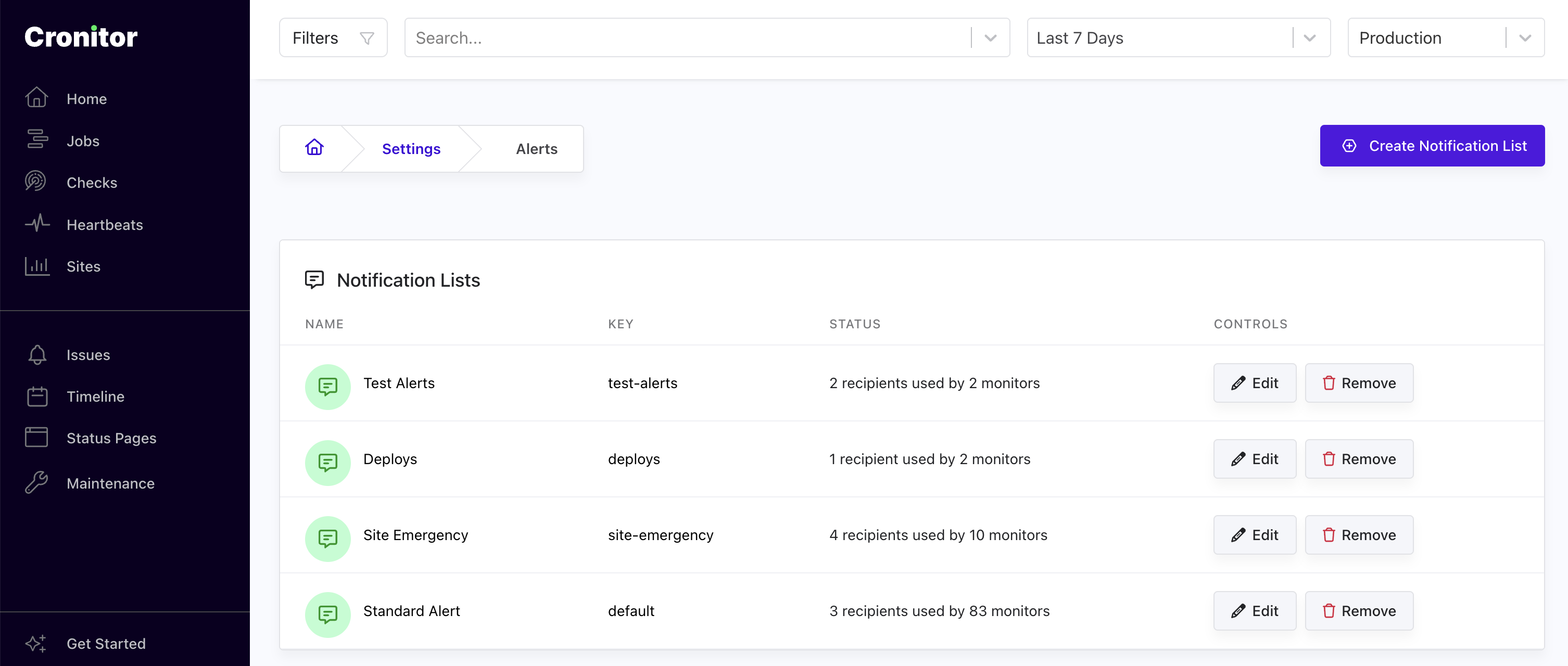
- Create new lists for different teams or alert types
- View recipient counts and which monitors use each list
- Edit or remove lists with easy-to-use controls
- See usage statistics showing how many monitors are attached
Integrations
Detailed setup instructions for popular integrations:
| Service | Description |
|---|---|
| Slack | Send alerts to channels or direct messages with rich formatting and action buttons |
| Microsoft Teams | Deliver alerts to Teams channels with embedded monitor details and quick actions |
| Discord | Post formatted alerts to Discord servers with customizable webhooks |
| Google Chat | Send alerts to Google Workspace Chat spaces using webhooks |
| Telegram | Receive alerts via Telegram bot in direct messages or group chats |
| Lark | Deliver alerts to LarkSuite channels using custom bot integrations |
| PagerDuty | Create incidents with automatic escalation, on-call routing, and resolution tracking |
| Datadog On-Call | Route Cronitor alerts to a Datadog On-Call team for escalation and incident response |
| OpsGenie | Trigger OpsGenie alerts with intelligent routing and escalation policies |
| Splunk On-Call | Route alerts through Splunk On-Call with timeline integration and team coordination |
| Webhooks | Send custom HTTP requests to any endpoint with flexible payload formatting |
Configuring Alerts
1. Create integrations
Navigate to Settings > Integrations to connect your preferred services.
Once configured, these integrations can be added to any Notification List for reuse across multiple monitors.
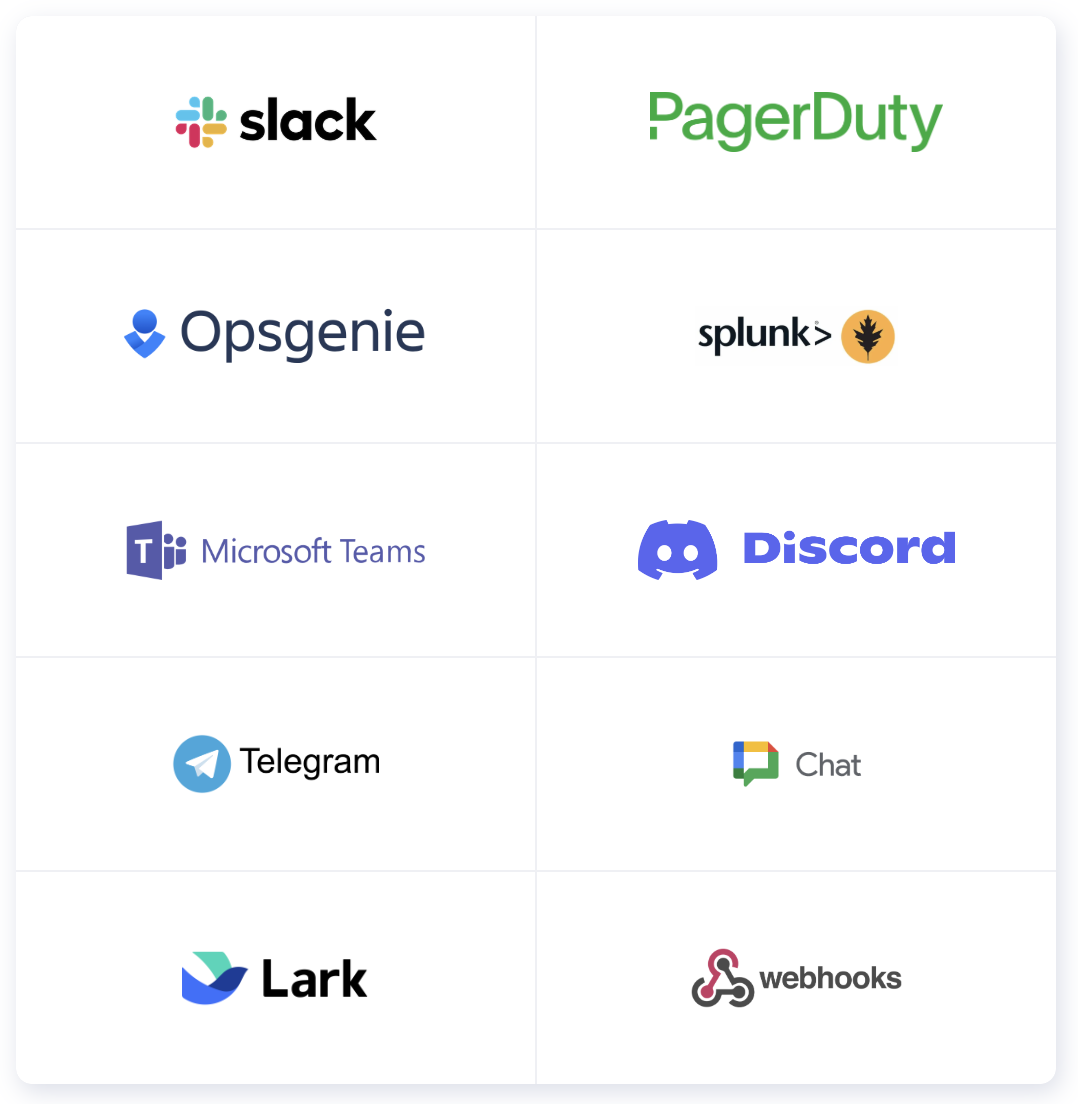
Popular integration types include:
- Chat platforms like Slack, Microsoft Teams, and Discord
- Incident management tools like PagerDuty, OpsGenie, and Splunk
- Communication services like Telegram and email
- Custom webhooks for your own systems
2. Create Notification Lists
Go to Settings > Alerts to manage your notification lists:
- Click Create Notification List
- Add a name and unique key
- Select recipients: emails, phone numbers, and integrations
- Choose which environments the list should be active in

3. Attach Lists to Monitors
When creating or editing a monitor, specify which notification lists should receive alerts. You can:
- Select existing notification lists
- Add individual email addresses or phone numbers
- Use different lists for different types of alerts

Sending Test Alerts
To verify your alert setup is working correctly, create a test heartbeat monitor and use its telemetry URL to trigger alerts:
1. Create a Test Monitor
Create a new heartbeat monitor and configure it with the notification list you want to test.
2. Send a Normal Ping
Copy the telemetry URL from your new monitor and paste it into your browser. Hit enter to send a normal "healthy" ping. This initializes the monitor and confirms it's working.
3. Trigger a Failure Alert
Add ?state=fail to the end of the telemetry URL and hit enter. For example:
https://cronitor.io/p/API_KEY/test-alert?state=fail
This simulates a monitor failure and triggers an alert to all recipients in your notification lists. Wait for the alert to arrive via your configured channels.
4. Send a Recovery Alert
Remove the ?state=fail parameter from the URL and hit enter again. This sends a recovery ping, which will trigger a recovery alert letting your team know the "issue" has been resolved.
API Resources
Manage alerts programmatically using our APIs:
- Issues API - Create, update, and retrieve issues
- Notification Lists API - Manage notification lists
- Monitor API - Configure alert preferences for monitors